
KickHost
  • 0 Shopping Cart
  • Home
  • Store
    • Browse All
    • Standard Hosting
    • Advanced Hosting
    • WordPress Hosting
    • Joomla Hosting
    • WooCommerce Hosting
    • PrestaShop Hosting
    • Magento Hosting
    • School Hosting
    • Core VPS
    • Student Hosting
    • Max Performance VPS
    • Reseller Hosting
    • Business Email Hosting
    • Microsoft 365
    • Google Workspace
    • SSL Certificates
    • Performance VPS
    • Dedicated Servers
    • DNS Management
    • CloudFlare DNS
    • Website Backup
    • Website Security
    • E-mail Services
    • Register a New Domain
    • Transfer Domains to Us
  • Announcements
  • Knowledgebase
  • Network Status
  • Affiliates
  • Contact Us
  • More
  • Account
    • Login
    • Register
    • Forgot Password?
  1. Portal Home
  2. Knowledgebase
  3. Databases
  4. How to Repair a Database via phpMyAdmin in cPanel

  Categories

Backup/Restore
4
CloudLinux (cPanel)
10
cPanel - Control Panel
24
Databases
11
DirectAdmin
48
DNS - Nameservers
6
Domain Management
10
Email
17
FTP
9
Installing a Control Panel
6
Mail Filters & SPAM
8
Mobile
11
Others
3
PayPal
7
Plesk
47
Security
10
SiteWorx/InterWorx
58
Softaculous
69
SolusVM
18
SSL
5
Virtualizor
19
WHM
18
WordPress
17

  Categories

  Support

My Support Tickets
Announcements
Knowledgebase
Downloads
Network Status
Open Ticket

How to Repair a Database via phpMyAdmin in cPanel Print

  • 0

1. Log in to your cPanel account.

2. In the Databases section, click on phpMyAdmin.


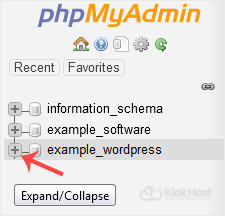
3. Click the Expand icon from the navigation tree in the left sidebar.

4. Scroll down and mark Check All. Then click on the drop-down arrow and select Repair table.
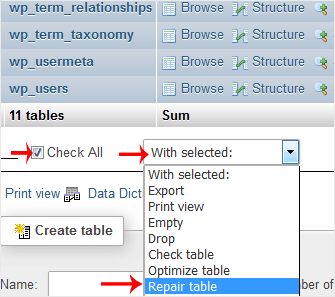

If the table has been repaired successfully, it will show an OK message. Otherwise, it will display an error on some tables.


Was this answer helpful?

Related Articles

How to Create a Database in cPanel 1. Log in to your cPanel account.2. In the Databases section, click on MySQL Databases. 3. In the... How to Rename a Database in cPanel 1. Log in to your cPanel account. 2. In the Databases section, click on MySQL Databases. 3.... How to Delete a Database in cPanel 1. Log in to your cPanel account. 2. In the Databases section, click on MySQL Databases. 3.... How to Add a User to a Database and Grant Privileges 1. Log in to your cPanel account. 2. In the Databases section, click on MySQL Databases. 3.... How to Optimize a Database via phpMyAdmin in cPanel 1. Log in to your cPanel account.2. In the Databases section, click on phpMyAdmin. 3. Click on...
« Back

  Support

My Support Tickets
Announcements
Knowledgebase
Downloads
Network Status
Open Ticket
  • Contact Us
  • Terms of Service

Copyright © 2026 KickHost. All Rights Reserved.


Loading...
Loading...
Choose language
العربية
Azerbaijani
Català
中文
Hrvatski
Čeština
Dansk
Nederlands
English
Estonian
Persian
Français
Deutsch
עברית
Magyar
Italiano
Macedonian
Norwegian
Português
Português
Română
Русский
Español
Svenska
Türkçe
Українська

Choose Currency

$ USD
KSh KES
GBP GBP
EUR EUR
USh UGX
RWF RWF
TSh TZS
NGN NGN
GHS GHS
CA$ CAD
INR INR
R ZAR
JPY JPY
R$ BRL
CDF CDF
CLP CLP
CNY CNY
COP COP
ETB ETB
Rp IDR
MWK MWK
MX$ MXN
S$ SGD
SSP SSP
TRY TRY
ZMW ZMW

Generate Password

Enter a number between 12 and 64 for the password length.